
- Feb 13, 2024
Extracting Initials in Excel Part 1
- Neale Blackwood
- Dynamic Arrays, Text, Formulas
- 0 comments
Sign up to hear about free Excel training.
I won't share your email with anyone.
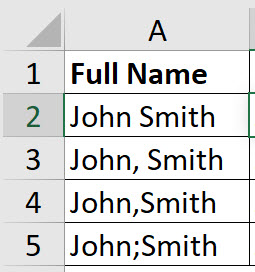
In the image below we have a first name and last name in column A separated by different characters.
We can use three functions together to extract the initials. Because these are new functions let's see how they work. We will start with the TEXTSPLIT function.
In the image below you can see the result of the TEXTSPLIT function.
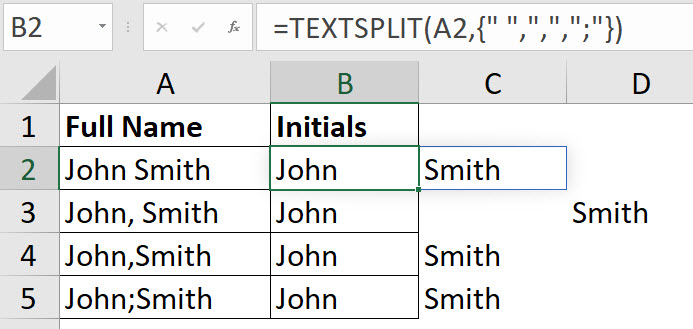
This formula spills across the sheet to return the number of names in column A. Spilling is a new term that is associated with dynamic arrays, a new calculation engine in Excel.
Notice that you can use the array syntax within the TEXTSPLIT function. The array syntax, which uses the curly brackets { }, allows you to list a number of different delimiters that you can split the name by.
We have listed the space, the comma, and the semicolon. If you needed other delimiters, you insert them between the curly brackets separated by a comma. Note you must enclose the delimiter within quotation marks.
In row 3 there is a comma and a space between the two names. This causes an extra spill cell. There is an argument in in the text split function that allows you to ignore empty cells. You can see the extra argument in the image below.
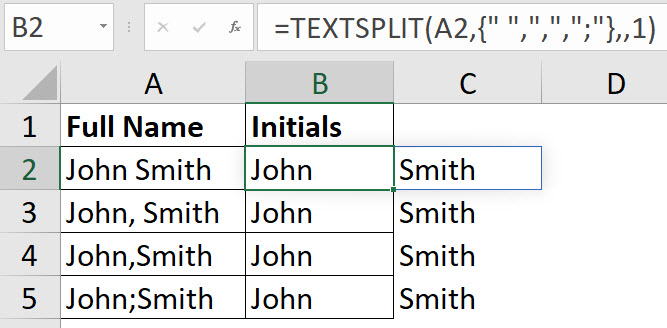
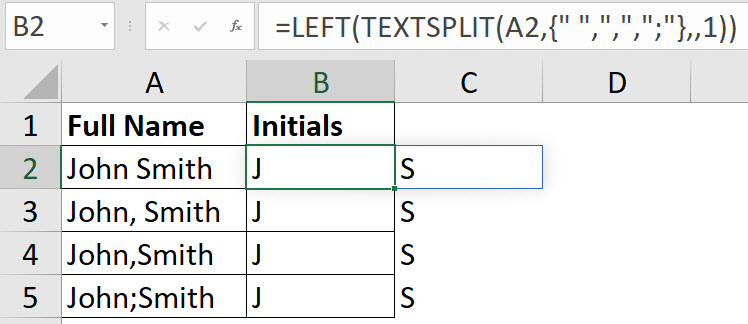
We can now use an old function in combination with text split. The left function can extract text from the left or the text string. Its default calculation is to extract the first character. You can see the left function used in combination with text split in the image below.
Now that we have the initials we need to combine them. The new CONCAT function allows us to do that easily – see the image below.

This has been easier because we have only two names. What if there are more names? We will look at that in the next blog post.