
- Jan 17, 2024
Useful Excel Keyboard Shortcuts for Data Entry
- Neale Blackwood
- Tips & Shortcuts
- 0 comments
Sign up to hear about free Excel training.
I won't share your email with anyone.
Todays’ date
It is very common to enter today’s date. There is a keyboard shortcut to do it.
Ctrl + ; will enter the date. This is not a formula, it is a data entry so it won’t change

If you do need a formula that updates every day, use the =TODAY() function.
Other dates
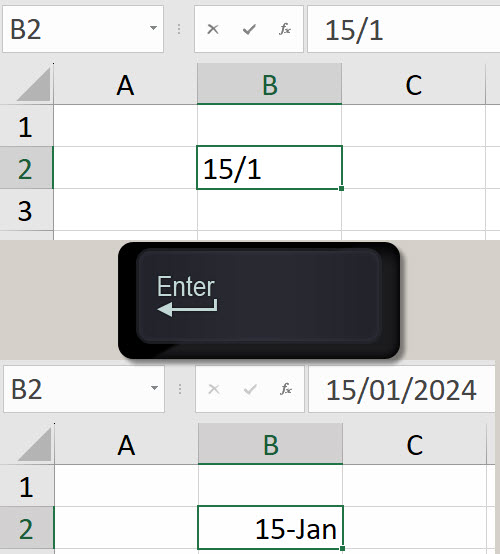
Did you know you don’t have to enter the year if you want to enter a date in the current year?
Try this entering 15/1 and press Enter - see image below.
Copy from above
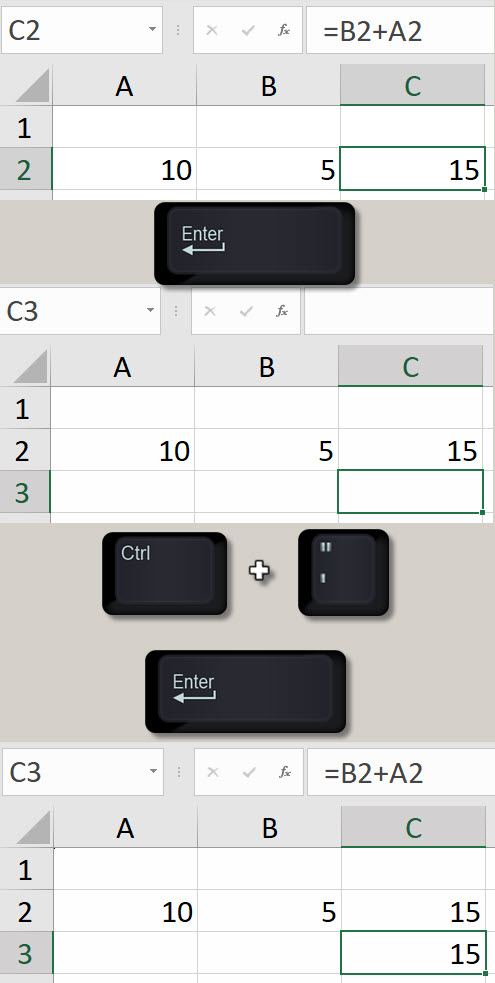
If you are entering data in a table, you often want to copy the entry from the above cell. To do that press Ctrl + ‘ and that will duplicate the entry from the above cell. Note sometimes with dates it may not match the format.

Formula copy - the previous technique is a way to copy the formula from the above cell without any references changing – see image below.
Copy from the left
If you need the entry from the cell on the left, you can press Ctrl + Shift + > note this does perform a copy and relative formulas references do move.

Tab key
If you are entering data on a row in a formatted table pressing the Tab key will move the active cell to the right. When you reach the last column pressing Tab then moves you to the first column in a new row and the table expands.

Moving around
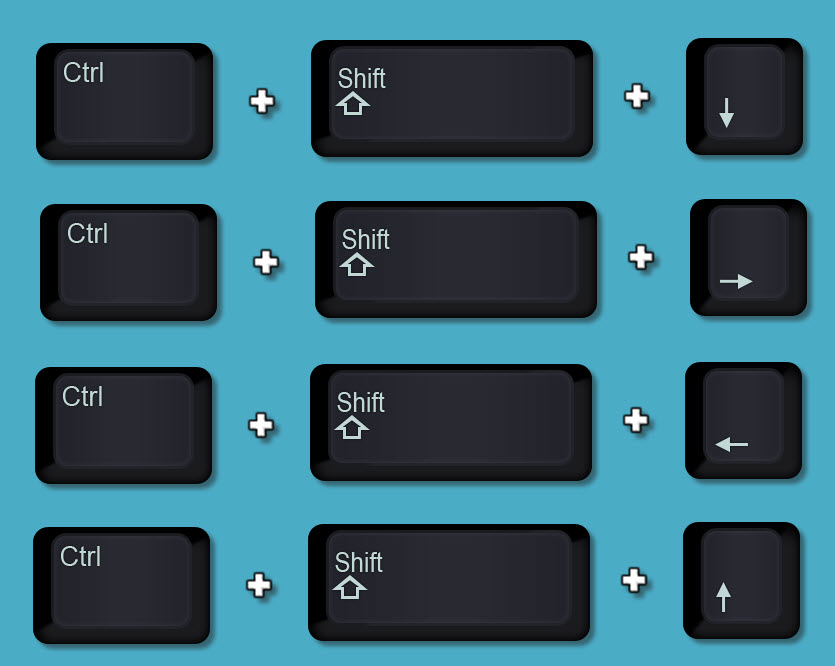
To move to the end of the entries in the various direction hold the Ctrl key down and press one of the arrow keys.
Entering data but not moving the cell
If you want to make an entry but not move the active cell. In other words, stay where you, then press Ctrl + Enter instead of Enter.

These are a few of the useful keyboard shortcuts that assist in data entry in Excel.